ciaranob
Well-Known Member
- Joined
- Jul 3, 2021
- Threads
- 83
- Messages
- 3,547
- Reaction score
- 2,639
- Location
- Houston, TX
- Vehicles
- CT4S 2022 Mini Cooper S 2024 Electric in 2025/6

- Thread starter
- #1
I thought I'd post what the 'innards' of the ChargePoint app look like for those interested and/or current users who have not perhaps explored it much. Nicely laid out app that because of agreements made back in 2019, allows you to freely 'roam' other networks like EVGo ad EV Connect without having to switch accounts i.e. you simply use your ChargePoint account via Phone tap or your ChargePoint card on any of these companies stations and all should work seamlessly - I've played only three times with 100% success. All filtered/unfiltered searches will locate any chargers on all three networks.
Ref to 2019 shared roaming agreement:
https://www.chargepoint.com/about/n...greement-expanding-access-charging-nationwide
The app has many features including the ability to automatically tap into current utility pricing in your area to make a best estimation of your ongoing at home AC charging costs or for a completely accurate account, you can enter your specific Utility contract's rate directly into the app. Monthly statements for all years of your account are saved and easily accessible in the app and online and exportable in std. readable formats (using the std. Apple 'export' icon top right in screen shown in Pic 9 below or equivalent on your device)
Example of all my at home AC charges (green) obtained from the ChargePoint app and put in a simple plot:

There are all kinds of 'smart' functions in regards interactions with the EVSE however I can't speak to much testing here as I keep things very simple on my fixed rate utility plan i.e. simply plug it in and charge to 85% when needed
 !
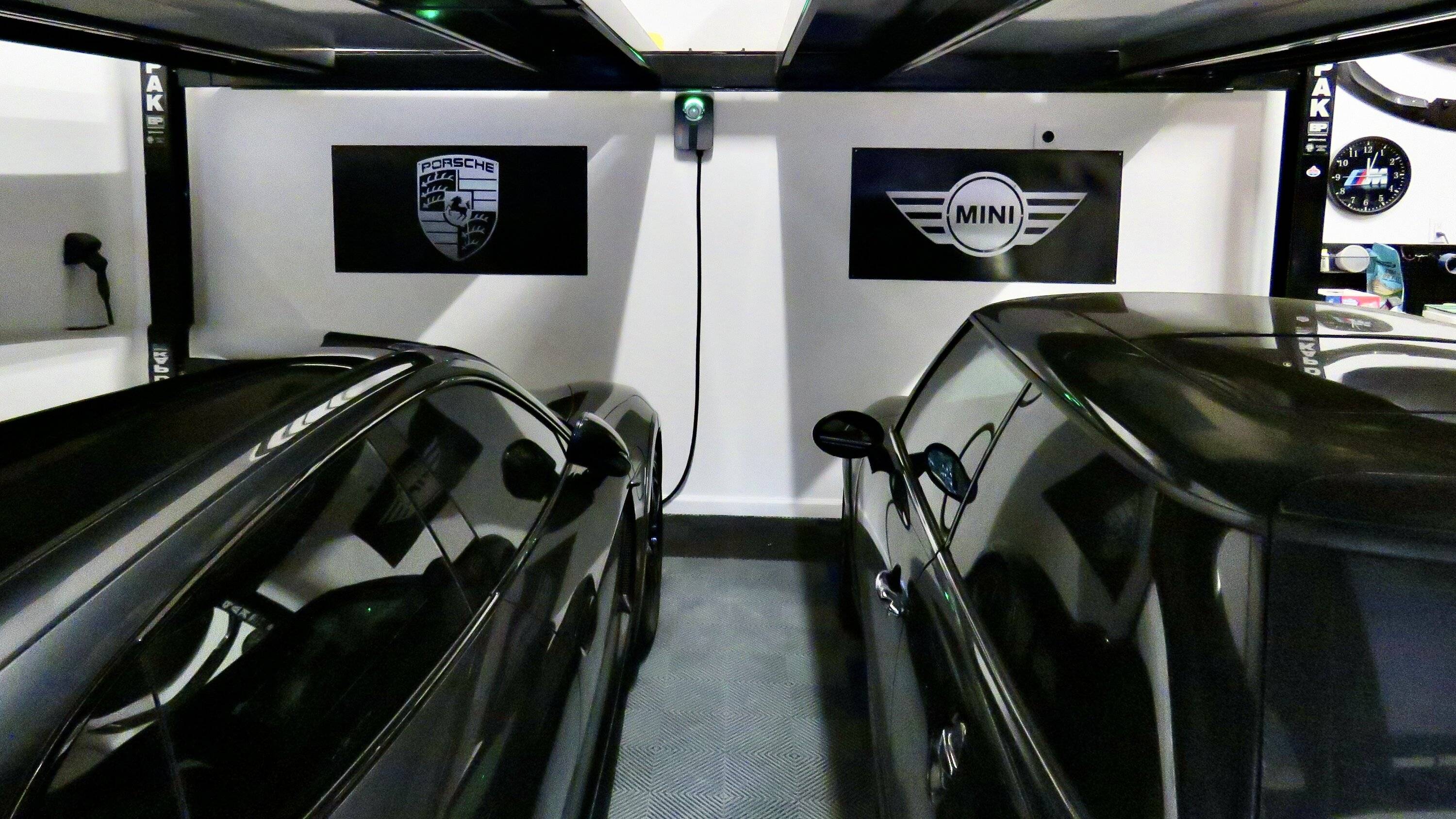
!For reference I have the ChargePoint HomeFlex purchased back in July 2021 and installed 2 months later using the hard wired (60A breaker fuse/48A power) option to max power to the EVSE at 11.5kW which results in ca. 10.5kW at the car. I managed to secure a really good deal back then that appears to be to close to half the current price, so rather lucky and very happy with that (!).
The EVSE has operated flawlessly for the 1 yr 8 months use to date and is fully connected to my home WiFi network accessible via the App - setup was truly a breeze and I can honestly say that I've had ZERO issues including through numerous power interruptions in our area over the last 1.5+ years with no detrimental effect and the EVSE very quickly jumps back online with no interventions needed - I set this thing up once and have never had to muck with it since - way it should be
.______________________________________________________________________
So, to the App (shown here on Apple iOS) - obviously to those interested!:
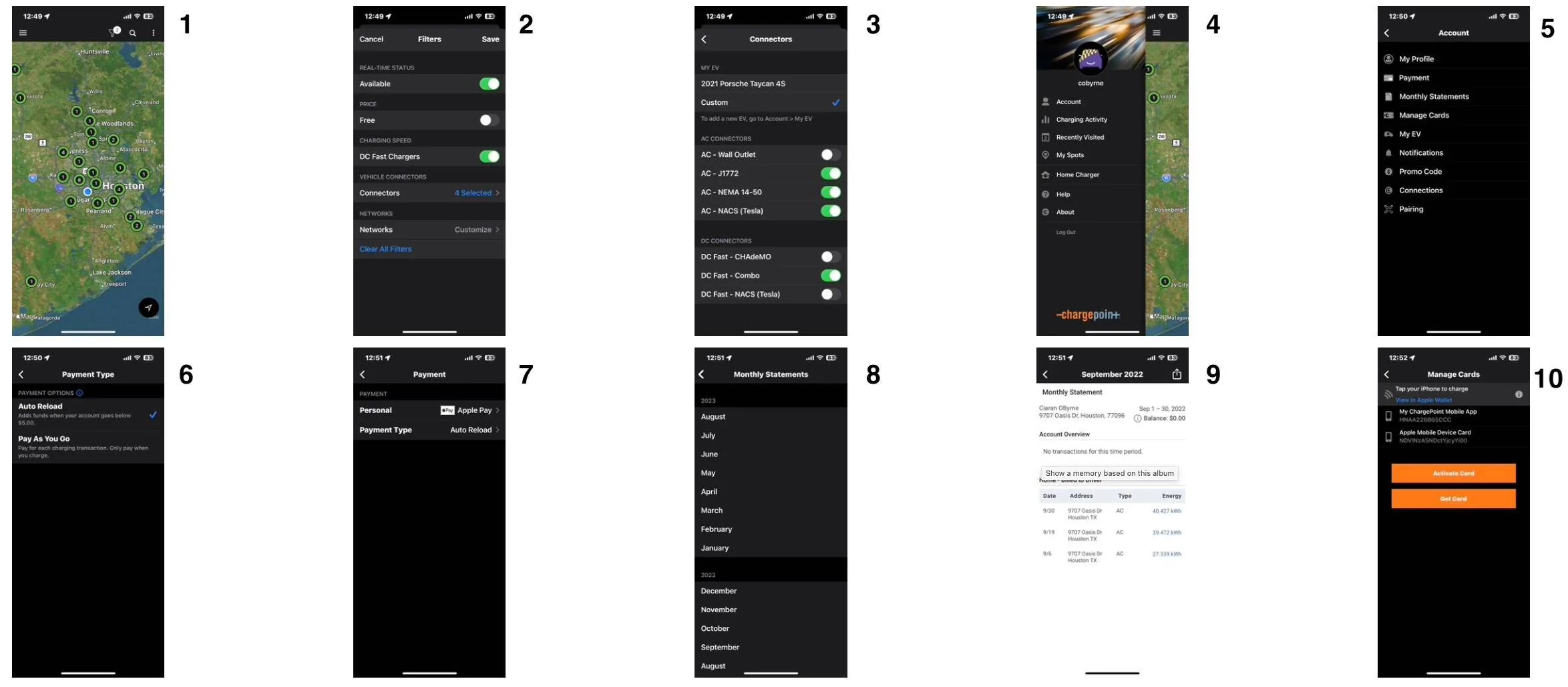
Launch the app and you see the map view with charger locations (as dictated by your filter settings) as here in Pic 1:
The filter icon top right has options highlighted in Pic 2 and it's sub-menu for connectors in Pic 3
Pic 4 is back to the home screen and tapping the '3-bar' menu on top left of screen - choosing Account from this drop down menu brings you to Pic 5.
Choosing Payment type in this menu brings you to Pic 6 with two options on how you'd like to pay for sessions and tapping either of these brings up payment methods in Pic 7
Returning to Pic 5 and choosing Monthly Statements brings yo to Pic 8 and selecting any month brings you to screen like Pic 9 that details out how much energy you used at what time for your charge events (mine all being at home). Far more detailed info coming in later screens below.
Back to Pic 5 Account and choosing Manage Cards brings you to Pic 10 where you can add in digital or physical credit and charge card info.
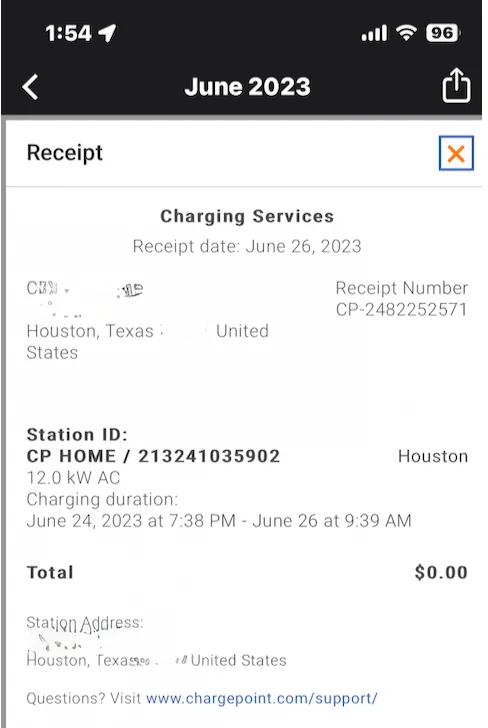
Note that tapping any one of the highlighted (in blue) kW values in this statement view pops up a receipt for that charge (useful in various business applications) that looks like this:
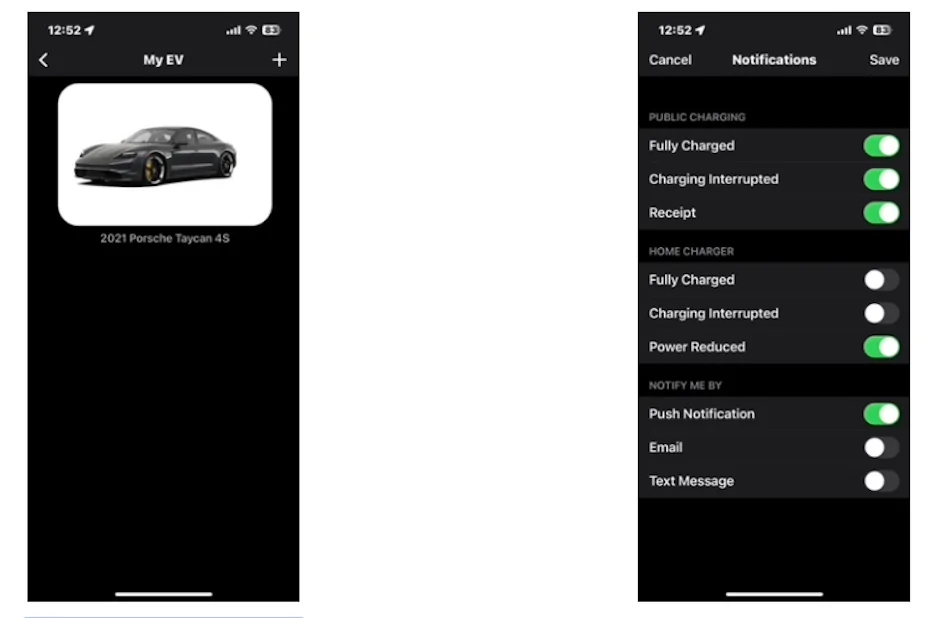
A couple of other sub-menus under the Account Page (see Pic 5) are your car's icon and a Notifications menu as follows:
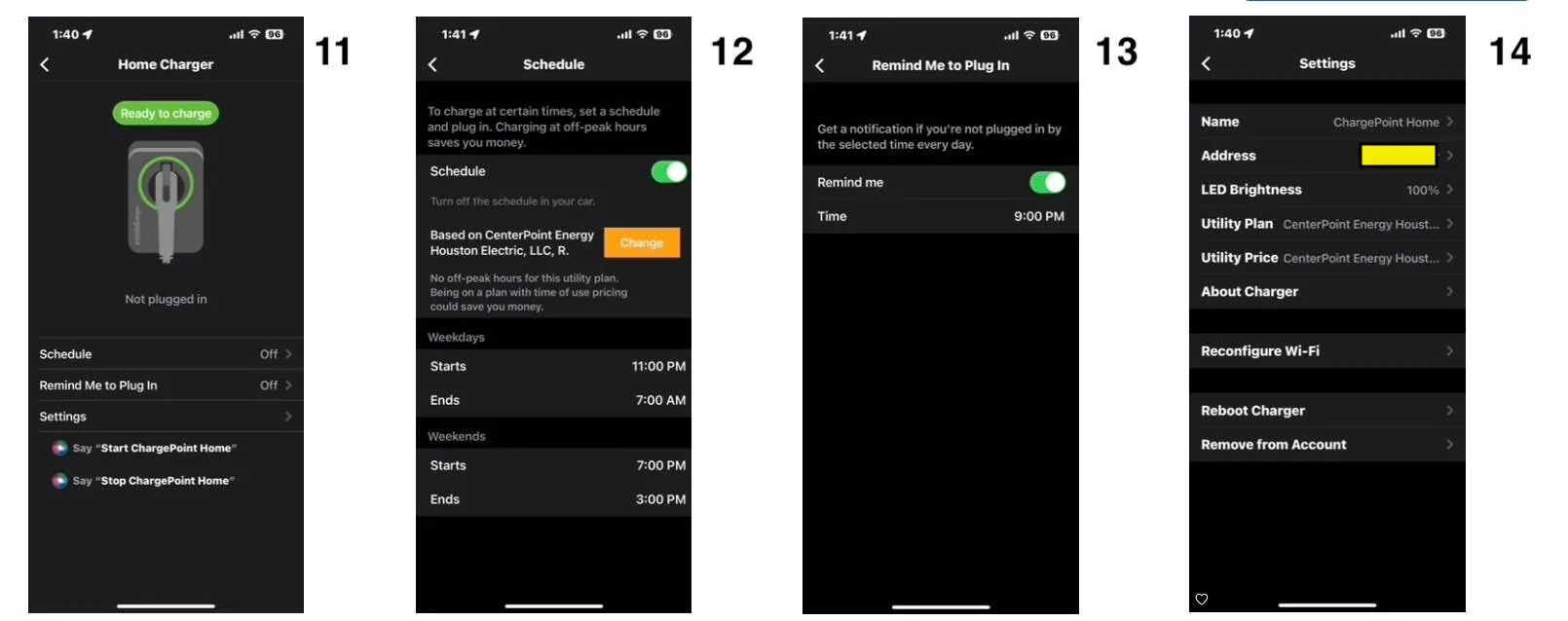
If we jump back to the '3-Bar' drop down menu in Pic 4 and choose Home Charger this brings to Pic 11 with three sub-menus shown in Pics 12-14. Its is here you can set up your Utility's rates or just have ChargePoint auto locate them. Schedule and Reminder pages self explanatory.
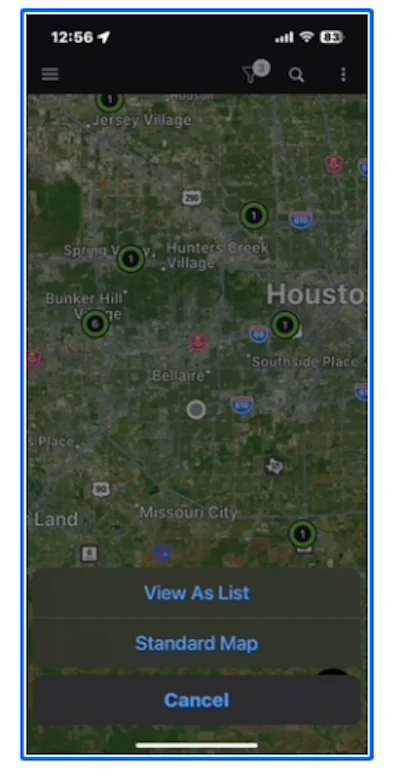
Returning to the Home Screen you can again see all (filtered or unfiltered) charging locations - you can change Map to List view if preferred:
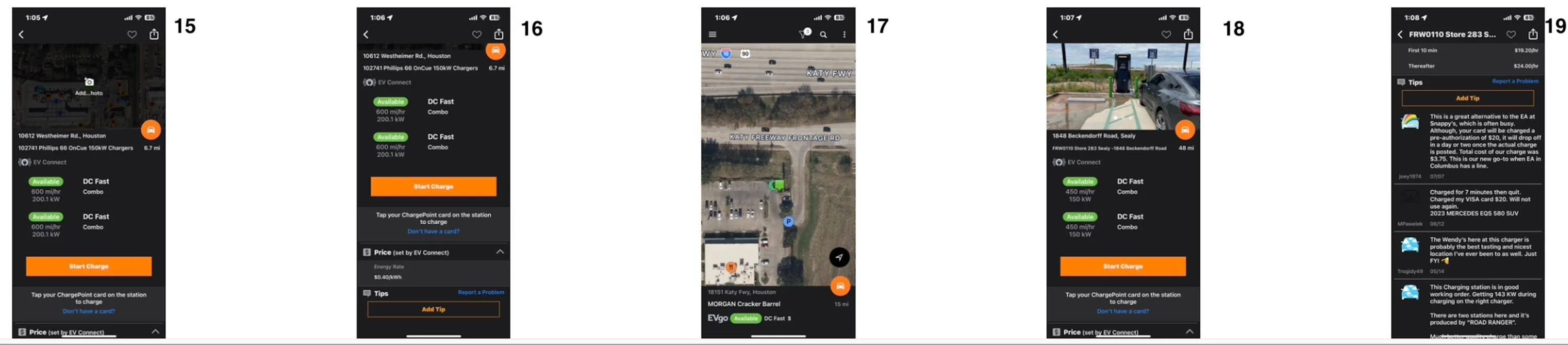
You can of course directly select stations from the map or list or alternately use the 'magnifying glass' icon top right to search for a specific location.
When I clicked the map in an area west of Houston (Katy) it (multi-step) zoomed into that choice as seen in Pic 17 below and simply tapping or dragging up the info area at the bottom of Pic 16 gives the info in Pics 15, 16 and 18,19 all of which again are self explanatory.
And finally the more detailed charging info you can retrieve as noted above:
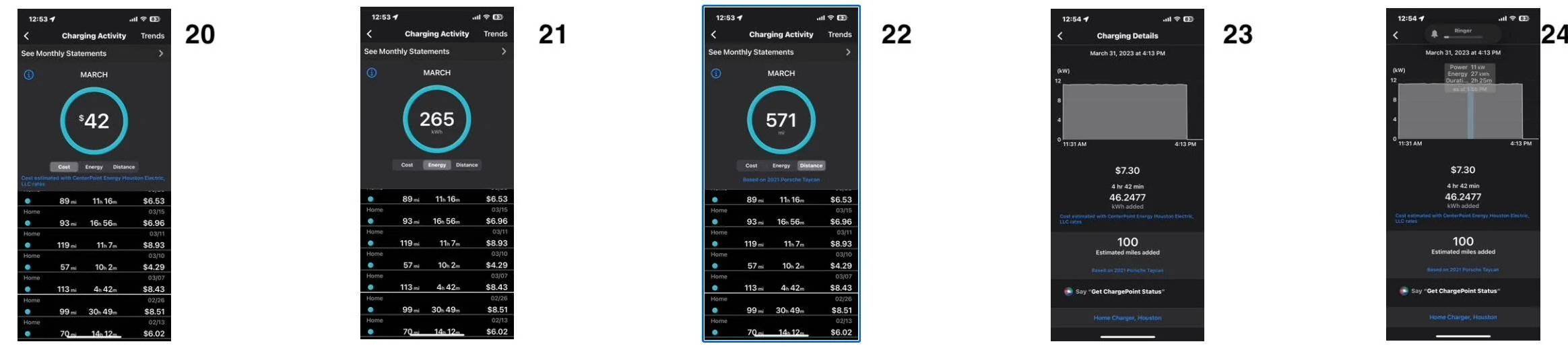
If you return to the Home Page and click the '3-Bar' drop down menu (Pic 4) and then select 'Charging Activity' (Pic 4) this will bring up a list of all you charging sessions as in Pic 20. You can view the sessions here in three categories: Cost, Energy and Distance as in Pics 20-22.
Clicking on any individual charging session brings up the views in Pics 23-24. The annotation in Pic 24 is viewed by placing your finger on the chart and sliding left or right to view how much kW were available at any time in the charge session - neat!
There are other sub-menus I won't go into here that include Help and About menus, Saving favorite locations, Quick jump to recently visited station, setting up other vendor interactions etc.
Thats all Folks,
Cheers, C.
Sponsored
Last edited: